
First, employees may only be deleted if they do not have any payroll history and are not part of a pending payroll. If either applies, the Delete button will not be available to click.
Why is this important? While being part of a pending payroll may be obvious, pay history is not. Yet, it's important. Due to employee recordkeeping laws, the system prevents you from deleting any such employee as a way to help protect against non-compliance.
If neither situation applies to an employee, and you wish to delete them:
- Select and open the client and company from the dropdown list above the heading on the right-hand side of the screen.
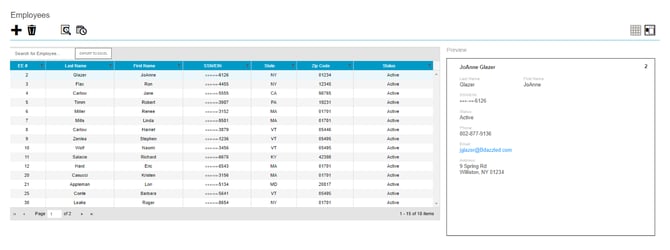
- Click the Employees Menu to open, and find the employee you are looking for.
- Highlight the applicable employee.
- Click the delete icon (garbage can icon) in the top-left corner of the screen
- A confirmation screen opens asking for confirmation of the deletion. If the employee has any payroll history, an error message will be displayed.