
To edit, set, or update compensation information for an employee, you'll need to navigate to the Employees – Pay screen. This screen includes salary information, rate amounts for hourly employees, pay frequency, etc.
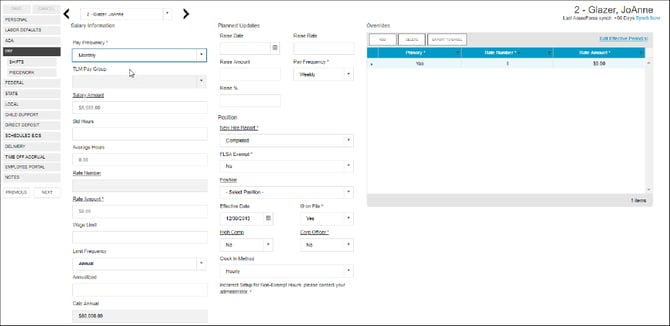
From this screen, you'll be able to configure the following information:
- Salary Information:
- Pay Frequency
- TLM Pay Group (if applicable)
- Salary Amount
- STD Hours (Standard Hours)
- Average Hours
- Rate Number (if applicable)
- Rate Amount
- Wage Limit
- Limit Frequency
- Annualized
- Calculated Annual
- Position:
- New Hire Report
- FLSA Exempt
- Position
- Effective Date
- I-9 on File
- High Comp
- Corp Officer
- Clock-In Method
You'll also be able to add / plan raises ahead of time in the "Planned Updates" section. Specifically, you'll need to update the following information / fields:
- Raise Date
- Raise Rate
- Raise Amount
- Pay Frequency
- Raise %
The following table breaks down each field in the Employees - Pay Screen for the Salary Information Section:
| Field / Input | Description |
| Pay Frequency | How often the employee’s paycheck is processed. |
| Salary Amount | Salary earned per pay period (salaried employees only). |
| Standard Hours | Number of hours the employee is expected to work (this may be left blank for salaried employees working a 40-hour week). |
| Average Hours | Average hours the employee works – this field is system-calculated and is not editable. |
| Rate Number | The rate number if not the primary rate – this is read only. |
| Rate Amount | The rate for the rate number above. |
| Wage Limit | Wage limit used for Workers’ Comp billing and impounds. |
| Limit Frequency | If there is a wage limit, to what period is the limit applied? |
| Annualized | If there is a wage limit for a period other than annual, what is the annualized total amount of the limit? |
| Calc Annual | The system automatically calculates the annualized salary or pay based on the value in Salary Amount times pay frequency or the value in Rate Amount times the pay frequency times standard hours. |
The following table breaks down each field in the Employees - Pay Screen for the Position Section:
| Field / Input | Description |
| New Hire Report |
Pending: Select this option any time prior to the employee’s first payroll, after which time it is automatically updated to complete. Completed: If the service bureau is using new hire reporting services, the employee has been reported as a new hire. Completed by Predecessor: The employee was reported as a new hire by another service bureau. If an employee's status has changed from another code back to active, when the changes are saved, a message asks if this is a No: System saves the employee record and doesn't ask any more questions. Yes: System changes the New Hire flag to Pending and opens the Rehire Wizard. The Wizard includes a series of employee |
| FLSA Exempt | Is the employee exempt from minimum wage and overtime pay under the Fair Labor Standards Act? |
| Position | Employee’s work position at the company, set up on the Company – Benefits – HR Positions screen. |
| Effective Date | Date the employee’s position became effective. |
| High Comp | Is the employee highly compensated? |
| I-9 on File | Is the employee highly compensated? |
| Corporate Officer | Is the employee a corporate officer? |
The following table breaks down each field in the Employees - Pay Screen for the Planned Updates Section:
| Field / Input | Description |
| Raise Date | The date a future raise takes effect. |
| Raise Amount | The potential amount of the future raise. Use this for salaried or hourly employees. If there is a value in this field, leave the Raise Rate field empty. |
| Raise % | The potential percentage of the future raise. Use this for salaried or hourly employees. |
| Raise Rate | The hourly rate of the potential raise. |
| Pay Frequency | The frequency the employee will be paid after the future raise. |