
When it comes to updating an employee's address in the system, there are a few different spots you may want to check, depending on what it is you are looking to do.
Keep reading to find the situation that pertains to you.
Update an Employee's Primary Address in the System
If you are just looking to make a general change to an employee's address, you'll want to:
- Select and open the client and company from the dropdown list above the heading on the right-hand side of the screen.
- Click the Employees Menu to view all employees, and find the person you are looking for.
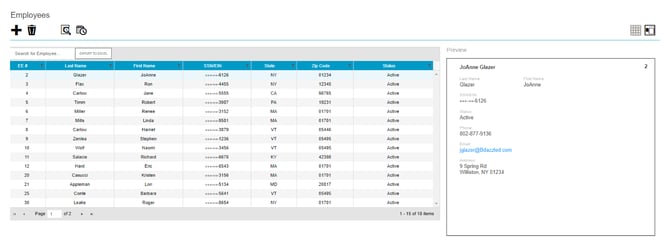
- Then, click to open up their profile and find the "Personal" Screen. There you will find their address information. Click into the box to update the information.
Update an Employee's Address for Receiving W2s
When adding a new employee to the system, you will have already added their address information initially. Whatever was initially set will carry over to their address for receiving W2s and paychecks.
However, if you change the address in the "Personal Screen" or need to include a different address to send W2s and paychecks to, you will need to update it in the "Delivery Screen".
- Select and open the client and company from the dropdown list above the heading on the right-hand side of the screen.
- Click the Employees Menu to view all employees, and find the person you are looking for again.
- Then, find the "Delivery Screen".
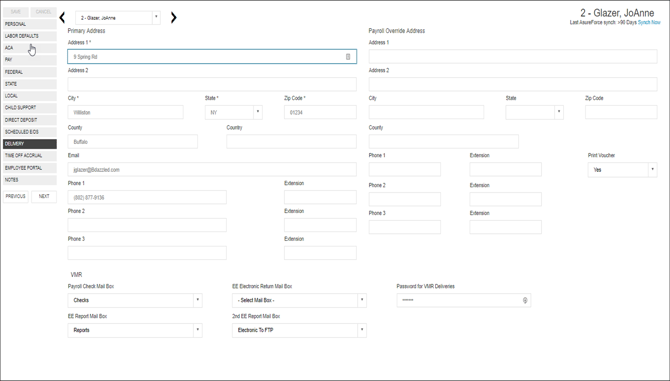
- Click in the applicable fields to add new delivery information as needed. To update the address for receiving W2s and paychecks, you'll want to update the "Primary Address" section.
What if an Employee Wants to Receive Paychecks at a Different Address?
If an employee wants to receive paychecks at an address that is different from the address they want to receive W2s, you'll want to update the "Payroll Override Address" section, located on the same "Delivery Screen", next to the "Primary Address" section.