
Note: If the company has any payrolls with a status of C, H, I, Y, or B, an error message will be displayed, and the user will not be able to add new employees, or make edits to any employees of that company.
Adding New Employees
To add a new employee in Web Payroll:
-
Select and open the client and company from the dropdown list above the heading on the right-hand side of the screen.
-
Click the Employees Menu to open.
If there are employees already set up with this company, they appear in the list on the screen.
Note: Employee SSNs are masked in the Grid View except for the last four digits.
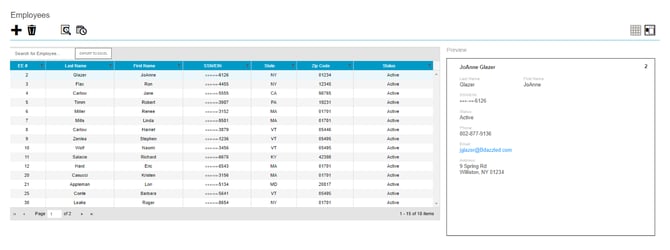
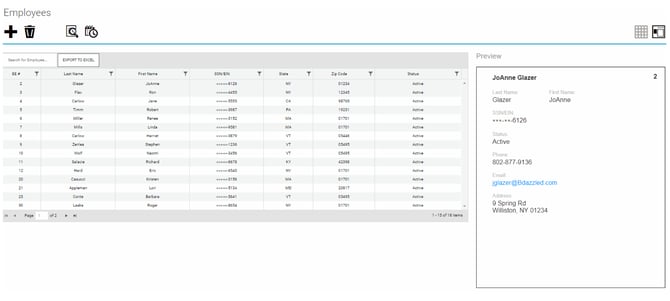
3. Click the large plus + sign in the heading to create a new record. The "Add Employee" box will open.
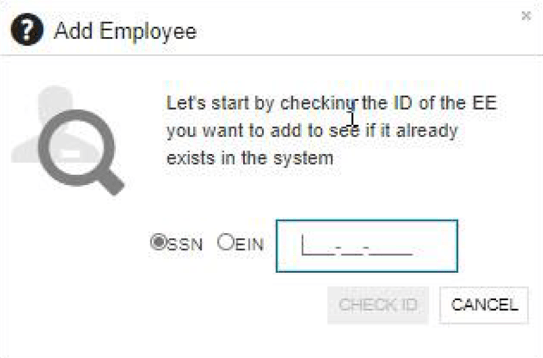
4. Select whether the Tax ID is a SSN or EIN and enter that number.
5. Click Check ID. If the Social Security Number or EIN is already in the system, the "Employees – Basics" screen opens with the existing demographic information already copied into the new employee fields.
Employees View Screen
The "Employees – View screen" is displayed only when creating a new employee. Once the basic information is added and saved, additional Employees Menu items are available on the left-hand side of the screen if needed.
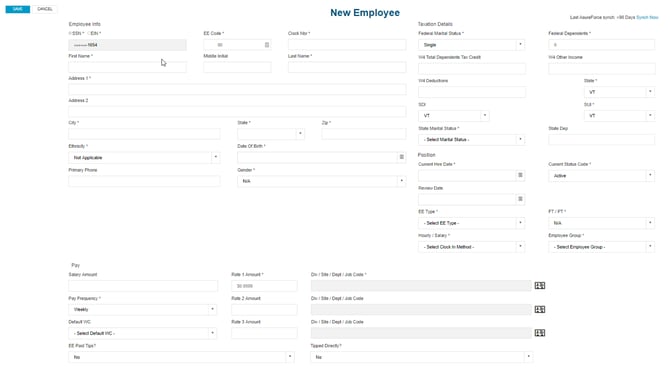
Complete the required and applicable fields.
Then click the Save button when you complete entering information on this screen. The Employees View screen will open with additional Employee Menu items available on
the left-hand side of the screen.
Complete Remaining Screens
Once the New Employee information is saved, the next screen will appear. Continue filling in applicable information, and hit next when each screen is complete.
Here is a list of the remaining screens after the "Employees - View Screen":
- Employees – Personal screen
- Employees – Labor Defaults screen
- Employees – ACA screen
- Employees – ACA History screen
- Employees – Pay screen
- Shifts Sub-menu
- Piecework Sub-menu
- Employees - Federal screen
- Employees - State screen
- Employees – Local screen
- Employees – Child Support screen
- Employees – Direct Deposit screen
- Employees – Scheduled E/Ds screen
- Setting up employee-level Scheduled E/Ds
- Employees – Delivery screen
- Employees – Time off Accrual screen
- Employees – Employee Portal
- Unblock Account Button
- Group Assignments section
- Employees – Notes screen